
ViperSuite — One application, every tool
Everything your channel needs to go on air, in a single installer and on your own hardware.
Playout, scheduling, graphics, recording, ingest, As-Run and multi-seat in a single product. No proprietary hardware, no closed boxes.
The product, screen by screen
Here you can see what our application is capable of.
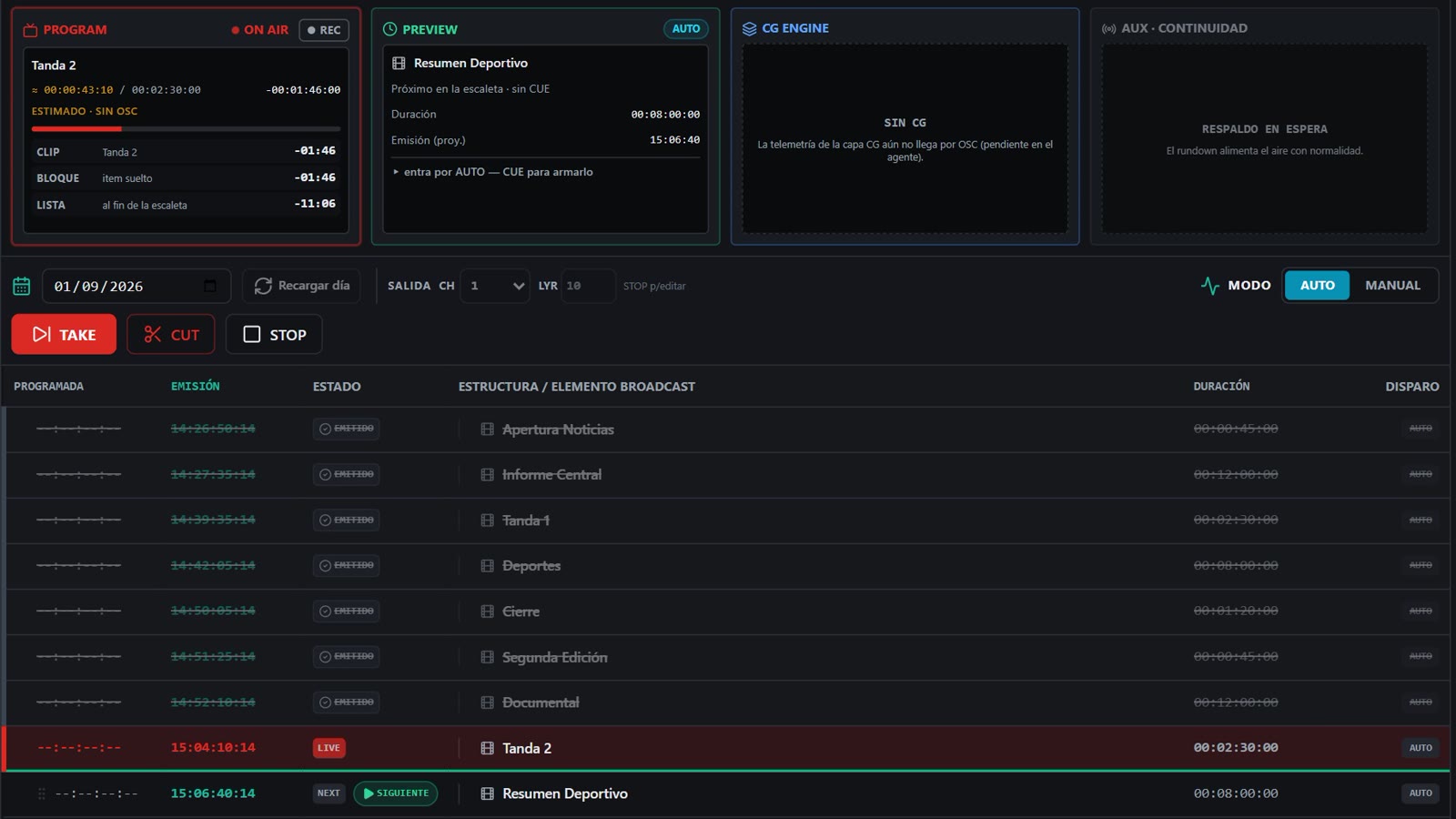
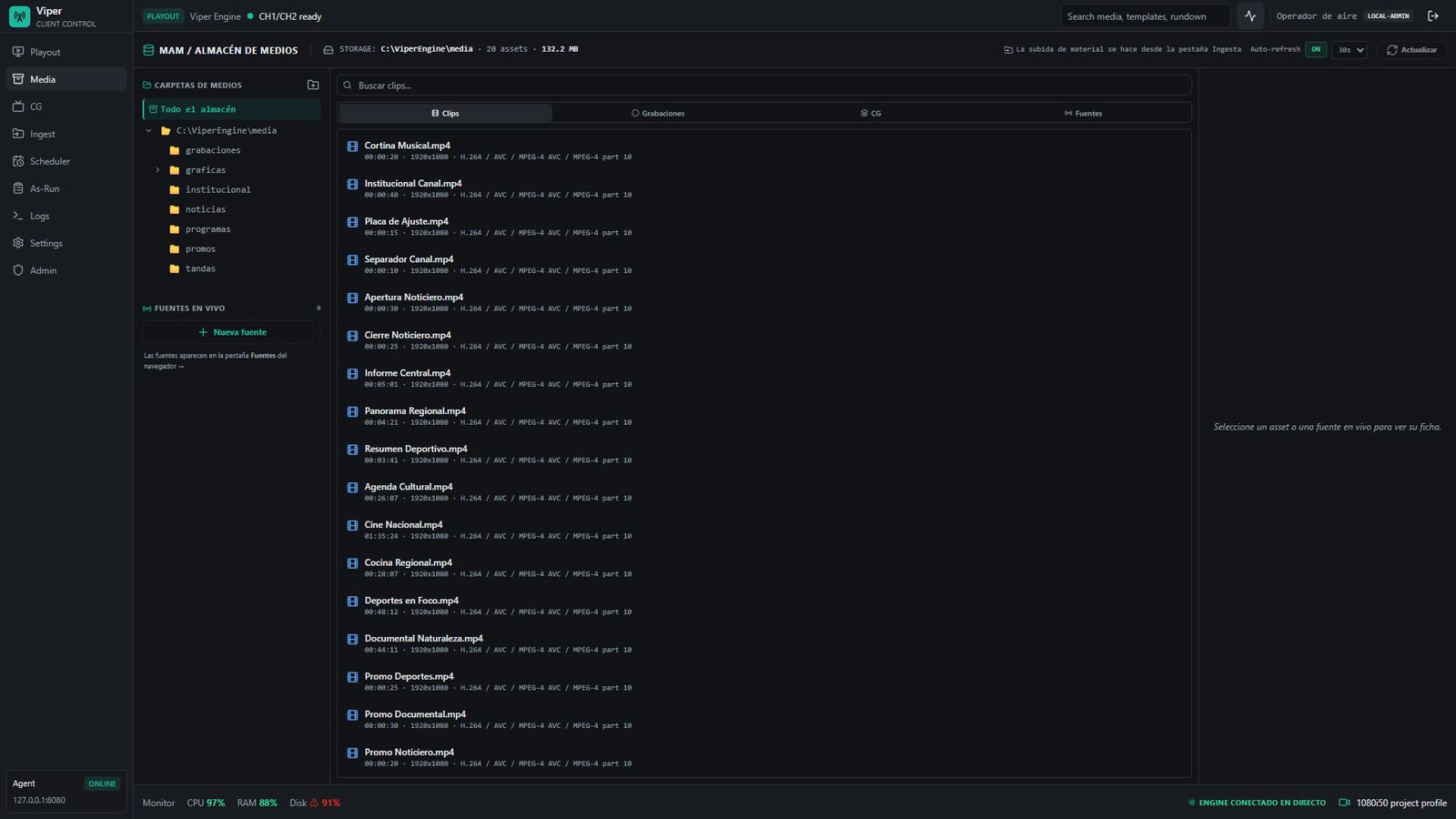
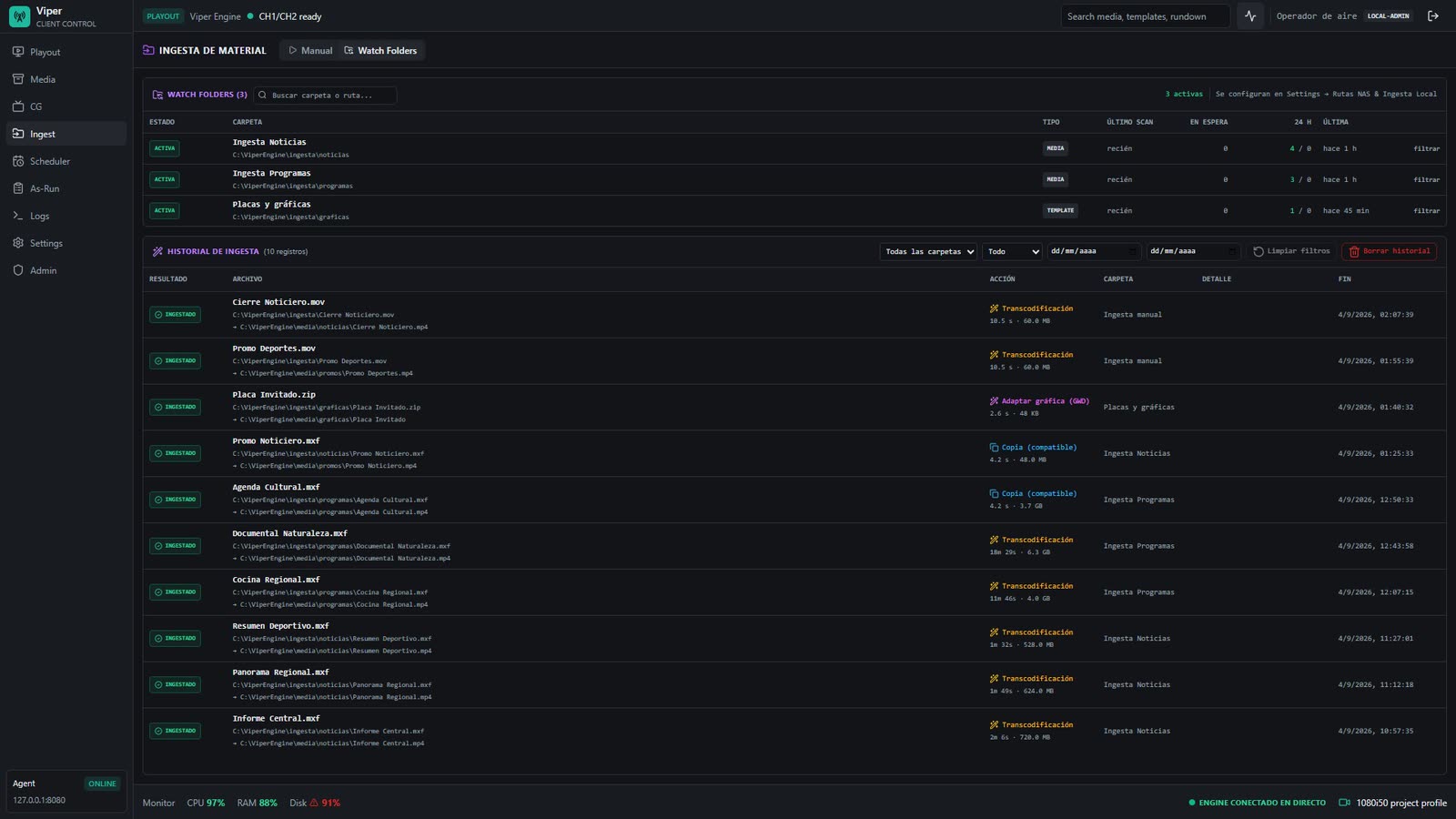
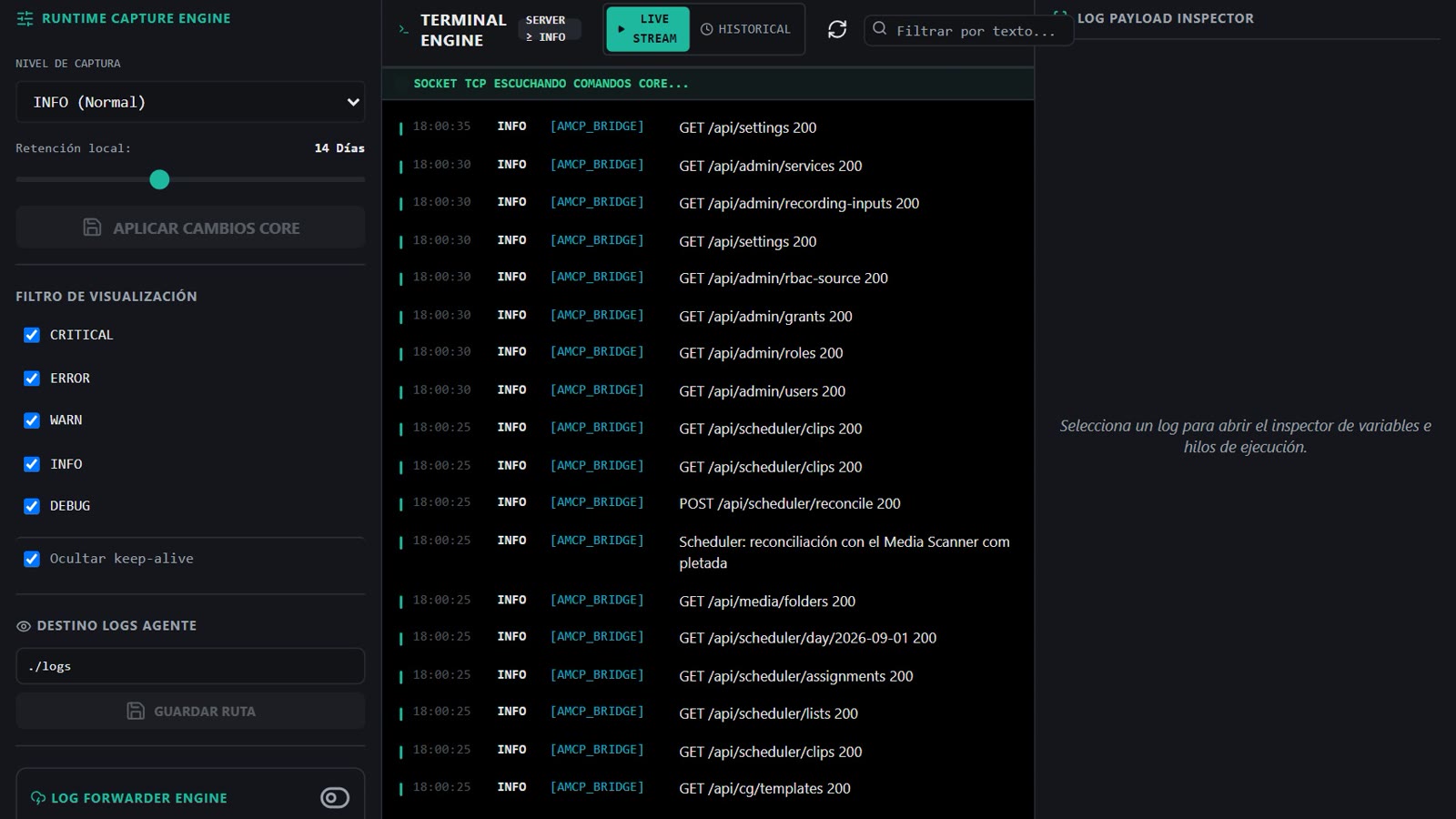
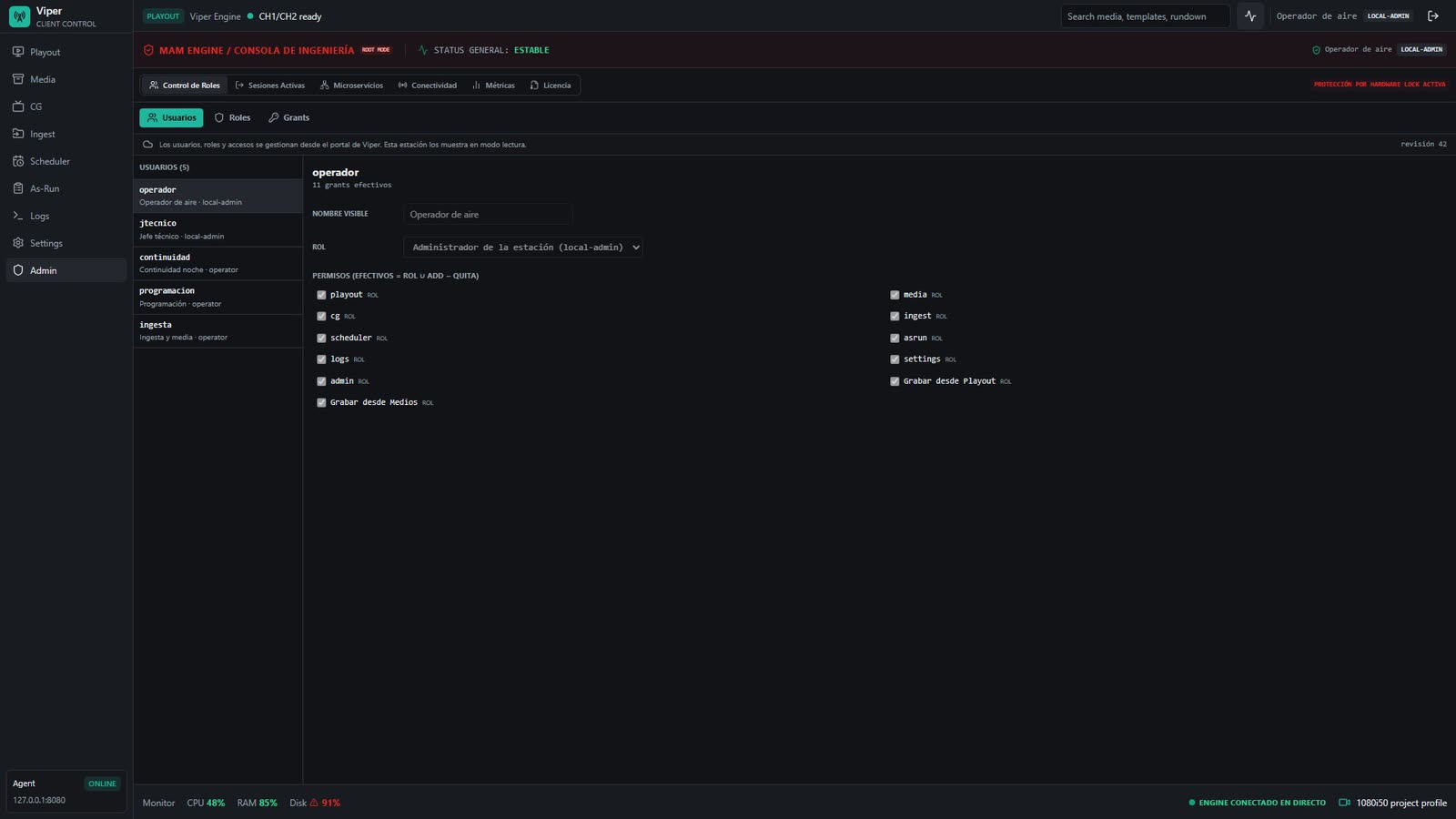
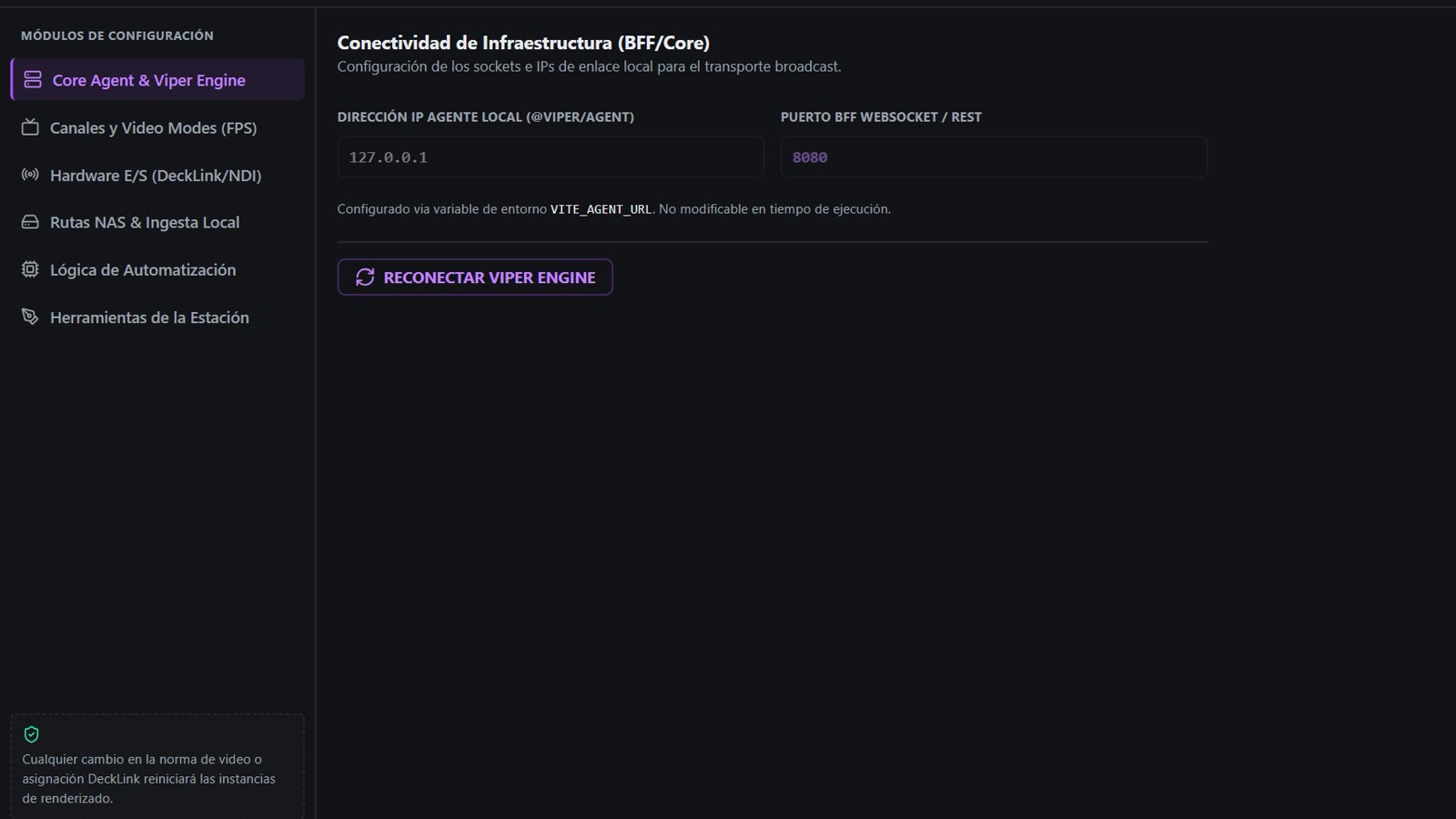
Playout — the clip on air, what is next, and the timings.
What it solves
Eight problems, one single tool.
-
You build the week once and the channel runs itself.
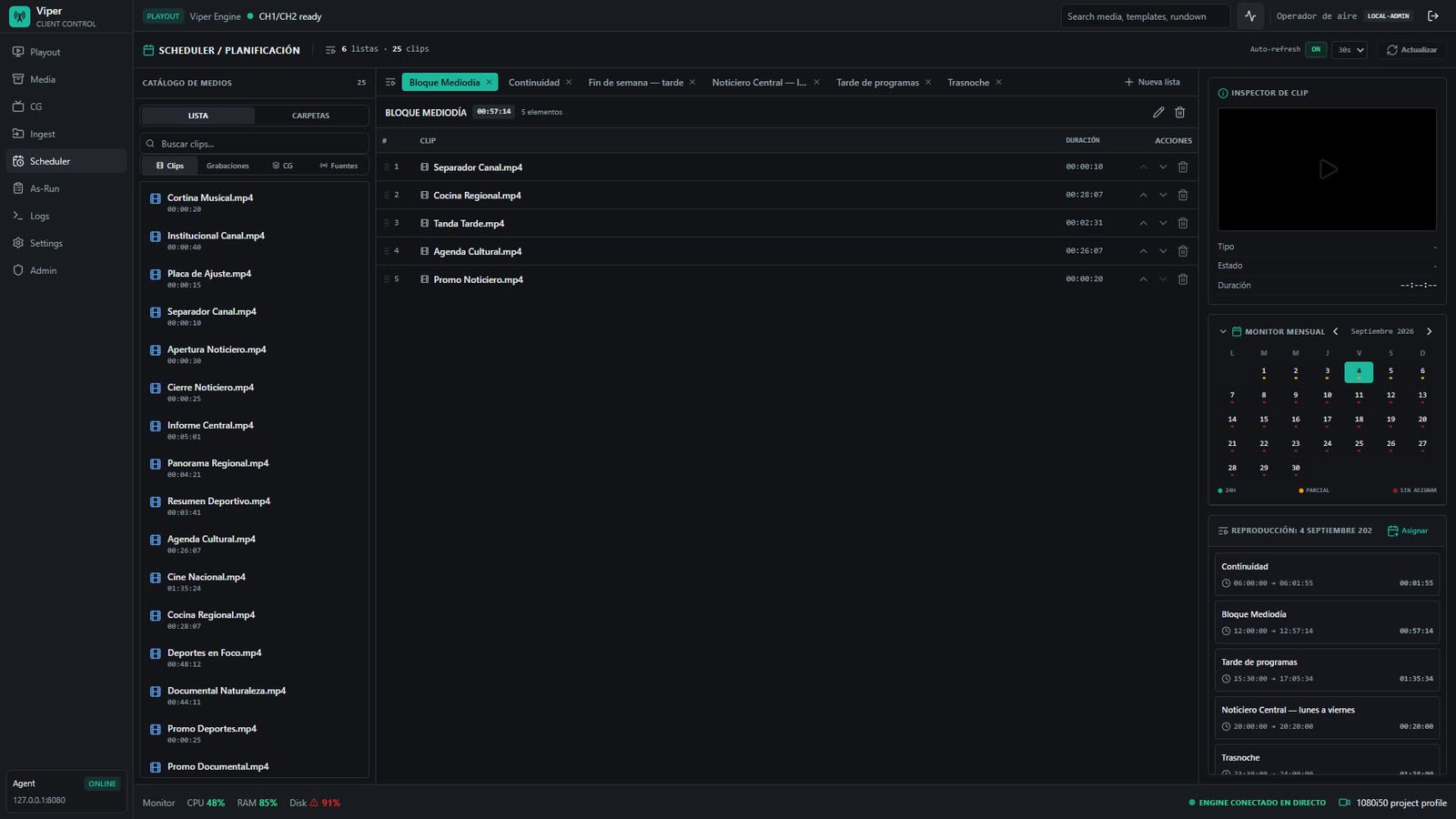
Scheduling by day and hour with reusable playlists.
-
You do not depend on someone watching the screen.
Automatic continuity: if something is missing or fails, the signal keeps going.
-
You change the grid with the channel on air, without dropping the signal.
Hot insert, manual take and live editing of the rundown.
-
The operator cannot break the machine.
The station boots in kiosk mode, with no desktop and no access to the system.
-
You put a lower third on air without depending on another machine.
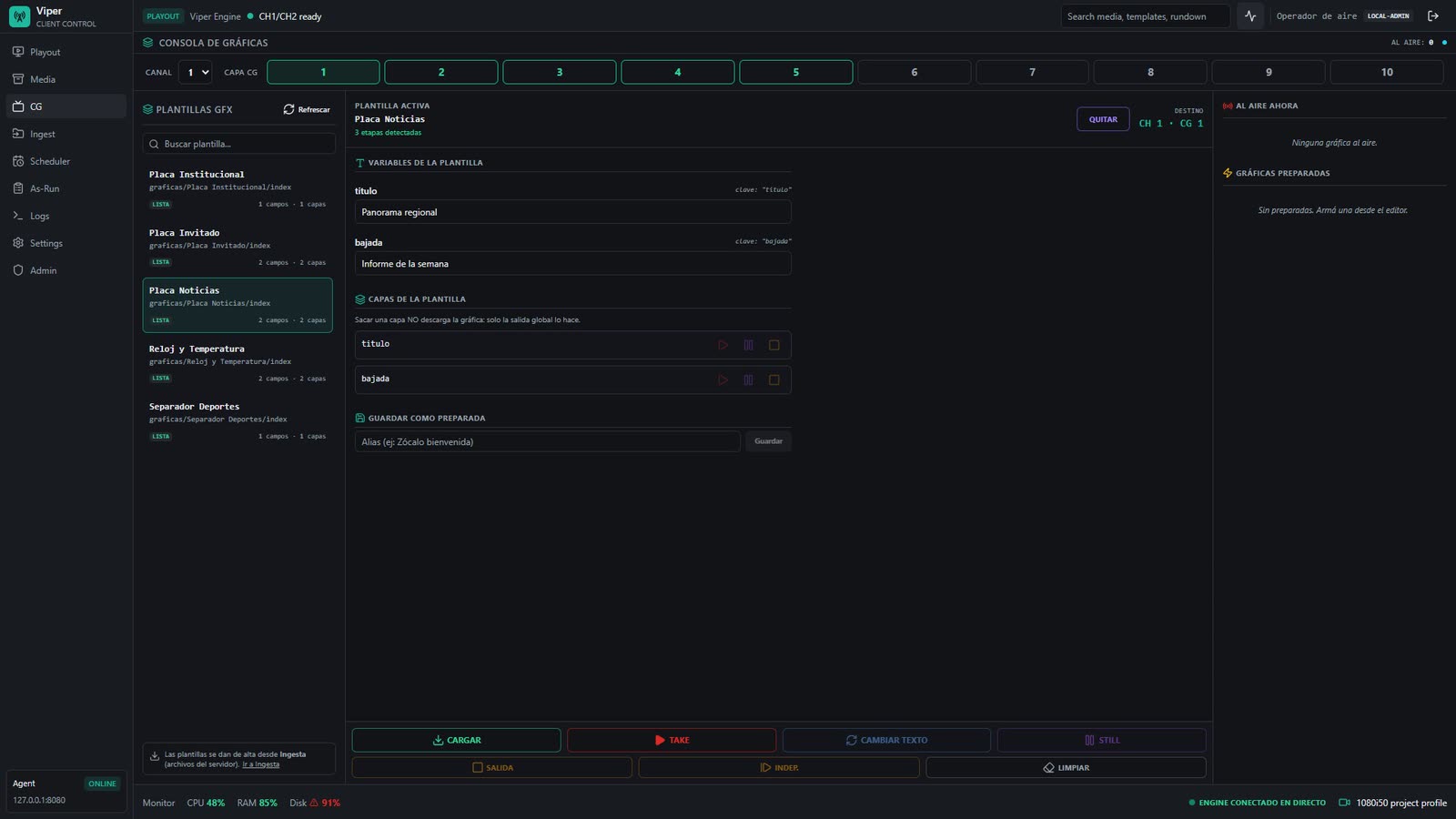
HTML graphics with presets, fired from the operator screen itself.
-
When someone asks what went on air, you have the answer.
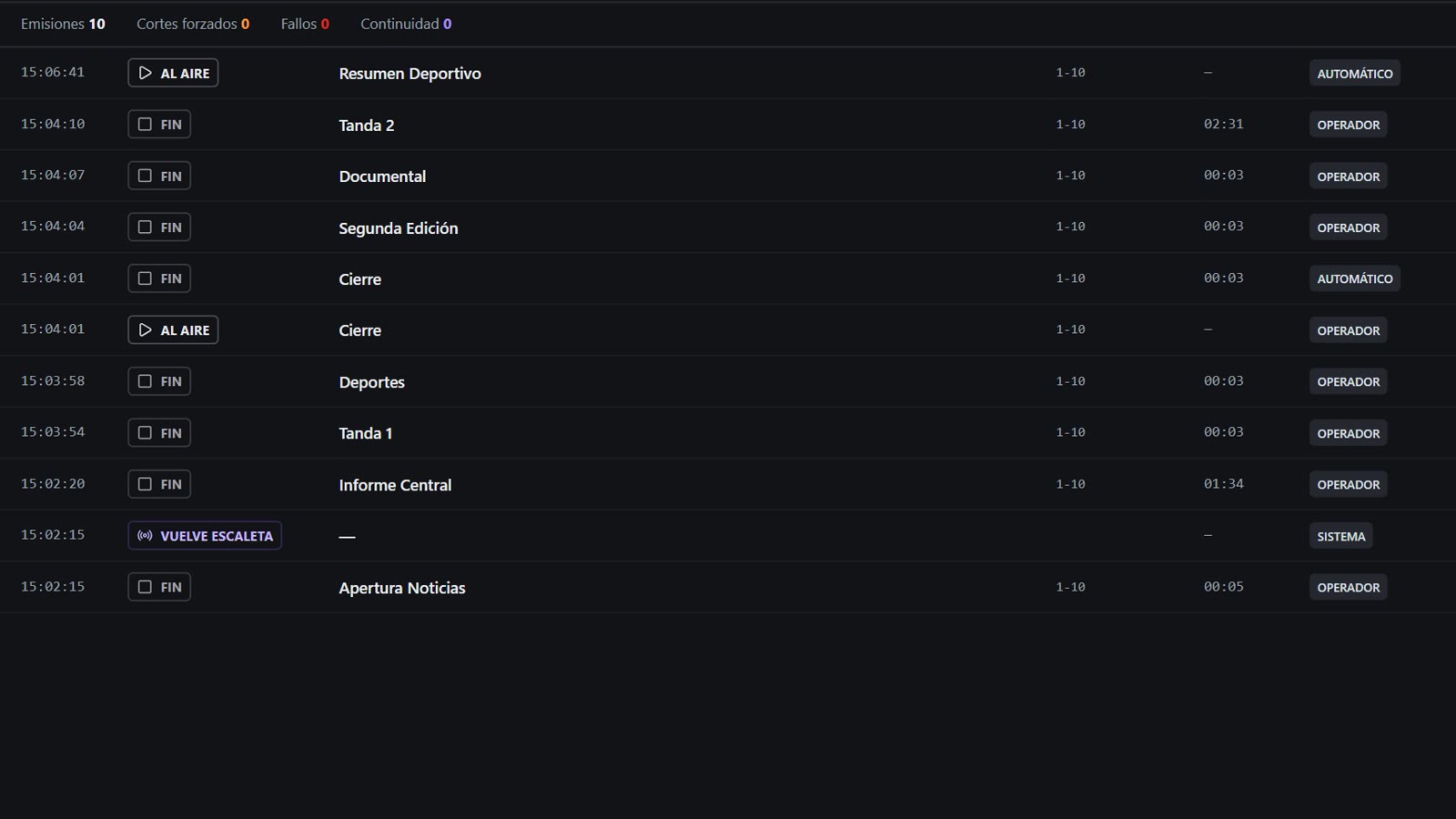
As-Run with the real broadcast log, and disk recording of the output.
-
More than one person works without getting in each other's way.
Workstations on the same station, with per-person permissions.
-
Material comes in once and is ready to go on air.
Ingest with duration reading and synchronisation with the library.
How it works
Three steps. This is not an integration project.
-
Install it
A single installer on your Windows PC. Everything it needs ships inside.
-
Activate it
Sign in with your account's username and password. The station is enabled.
-
Go on air
Load your material, lay out the schedule, and the signal starts.
Features
One product, one installation. Each channel licenses what it uses.
-
Playout
On-air output with playlist, continuity, rewind and resume. PROGRAM and PREVIEW in sight.
See the module -
Scheduling
Reusable playlists assigned to days and hours, with a coverage calendar that shows what is still uncovered.
See the module -
Graphics
HTML graphics on air, with presets and control from the operator's own screen.
See the module -
Recording
Records the channel output to disk while the signal is on air.
See the module -
Ingest
Brings material into the catalog, reading duration and keeping the library in sync.
See the module -
As-Run
A log of what actually went on air, not of what was scheduled.
See the module -
Multi-seat
One full station plus as many workstations as you need, with per-person permissions.
See the module -
Stays on air without internet
If the link drops, the station keeps running for a grace period.
See the module
The product keeps moving, and your station keeps up
Viper is updated often, and what gets added is yours. An active maintenance plan is what gives you new versions, the installer download and ticket support. We say it here, not on the invoice.
- New versions while maintenance is active.
- A client area with the installer download and your users.
- Ticket support, in Spanish.
What channels say
We are still filling this section with real customers.
-
We build the whole week on a Monday and the channel runs itself. We used to have someone watching the screen until dawn.
Head of engineeringBroadcast channel · Buenos Aires province
-
It went in on our own hardware, with no card to buy and no shipment to wait for. For a channel our size that was the difference.
ManagementCable network · Litoral region
-
Our internet went down on a Saturday and it stayed on air anyway. On Monday it caught up on its own, with nobody touching anything.
OperatorStreaming channel
Requirements
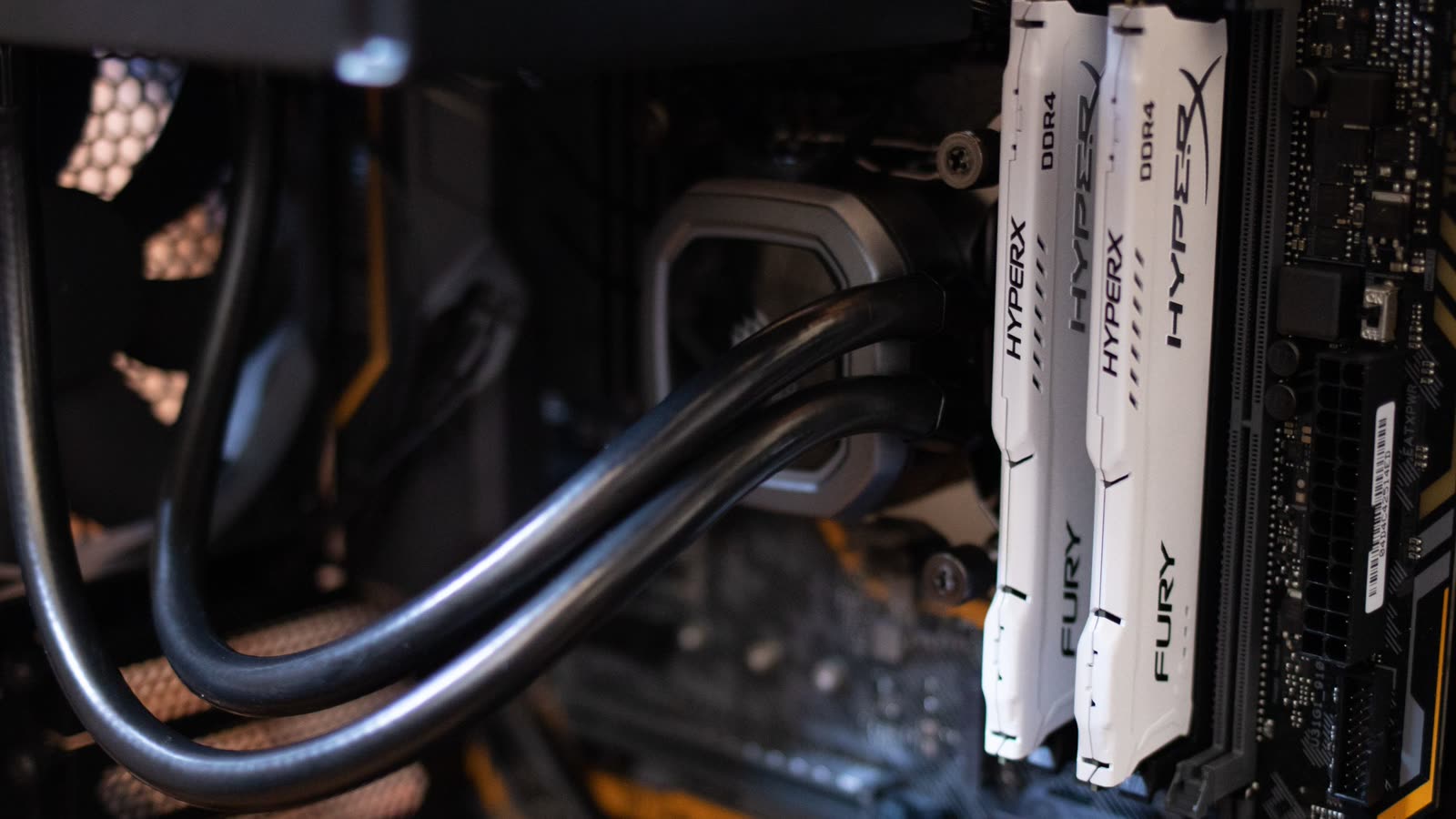
It runs on your own hardware — but not on just any machine. This is what it asks for, and these are measured floors, not estimates:
| Full station | Workstation | |
|---|---|---|
| Processor | 4 cores with AVX2 (Intel Haswell or AMD Zen onwards). Recommended: 6 or 8 | Dual core — any office PC from the last few years |
| Memory | 8 GB minimum · 16 GB recommended | 4 GB minimum · 8 GB recommended |
| Graphics | A card with OpenGL 4.5. A modern integrated GPU holds one channel; for more than one, or for heavy graphics, a dedicated Nvidia | Integrated is enough: a workstation never goes on air, it only draws the interface |
| Disk | SSD. 2 GB for the program, plus your media library separately | SSD, 500 MB |
| Operating system | Windows 11 (recommended) or Windows 10, 64-bit | Windows 11 or Windows 10, 64-bit |
- The full station is the one that goes on air. Workstations are the machines used for scheduling, ingest or building graphics.
- These numbers are for one signal on air and recording at the same time. If you plan to run two signals off the same machine, talk to us first.
- Size the media library by hours of material: one hour at 8 Mbps takes about 3.6 GB.
- It does not run on a virtual machine: the video engine needs real hardware.
Request a demo
Tell us about your channel and what you go on air with today. We'll show you the product running, and then we'll talk numbers.
We use your details only to reply to you. We don't share them with anyone.